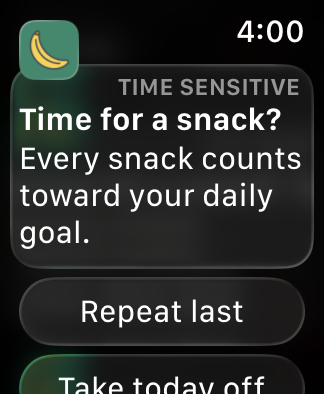
Notifications on Apple Watch
Snack App has a full Apple Watch app, and it schedules every reminder on the watch itself - so your wrist still gets tapped when your iPhone is off, dead, or in another room. When both devices are in reach, though, iOS decides, alert by alert, which screen to use - and that routing is what makes delivery seem to skip the watch "at random". Here's the logic, and the settings worth checking.
One alert, one place
iOS picks exactly one device to alert you on - the buzz, the sound, the banner. The rules:
- iPhone unlocked or in use? The alert stays on the phone. No setting changes that rule - though how long your phone counts as "in use" is yours to set.
- iPhone locked or asleep? The alert goes to the watch - but only if the watch is on your wrist and unlocked, and connected to the phone.
- Watch locked, off your wrist, or charging? The alert falls back to the phone.
Seeing it on both screens is normal. Only the alert is exclusive - the reminder itself still lands in the other device's Notification Center, so after your watch taps you, the reminder is also sitting on your iPhone's Lock Screen. That isn't mirroring failing. Clear it in one place and it clears in the other. When you're testing, judge it by which device tapped you, not by which screens the reminder shows up on.
This is the usual "rhyme or reason": snack reminders fire through the day, so plenty of them land while you happen to be using your phone - and those show up there, not on your wrist. Apps like chat or news mostly ping you at idle moments, which is why they can feel more reliable on the watch.
How long your phone counts as "in use"
Here's the part that catches people: your iPhone doesn't stop being "in use" when you put it down. It stays awake and unlocked until Auto-Lock turns the screen off - and that timer goes as high as five minutes.
Check it in iOS Settings → Display & Brightness → Auto-Lock. At 5 minutes, every glance at your phone opens a five-minute window where reminders still land there - even if it's face-down on a desk and you've walked away. Snack reminders fire all day, so a lot of them can fall into those windows, and it looks like the watch is dropping them at random.
30 seconds is the default, so if that's what you find, this isn't your problem - skip ahead to the checklist. If it's been lengthened at some point, moving it back to 30 seconds or 1 minute hands far more reminders to your wrist. Never is the worst case - the phone won't lock on its own at all, so nothing mirrors until you lock it yourself with the side button.
One thing that is not a problem: the Always-On display on iPhone 14 Pro and later. A dimmed always-on screen is a locked phone, not a phone in use, so reminders still go to your wrist. You don't need to turn it off.
If Auto-Lock looks stuck at 30 seconds and won't change, that's Low Power Mode - it forces the short timer and greys the setting out until you turn it off or charge up.
The settings checklist
Worth verifying once on each iPhone + watch pair:
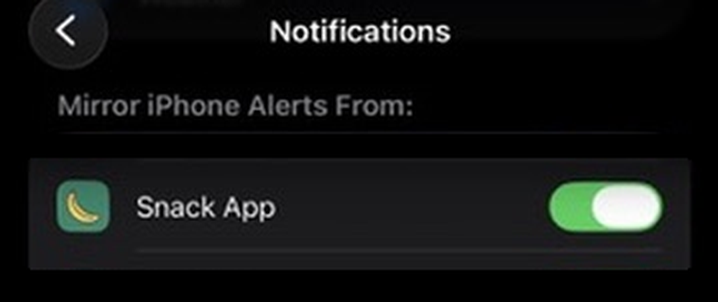
- Watch notifications are allowed. On iPhone, open the Watch app → Notifications, find Snack App, and make sure its notifications are allowed. (On app versions before 2.0 - before the watch app existed - it appears under Mirror iPhone Alerts From instead; set it to Mirror my iPhone.)
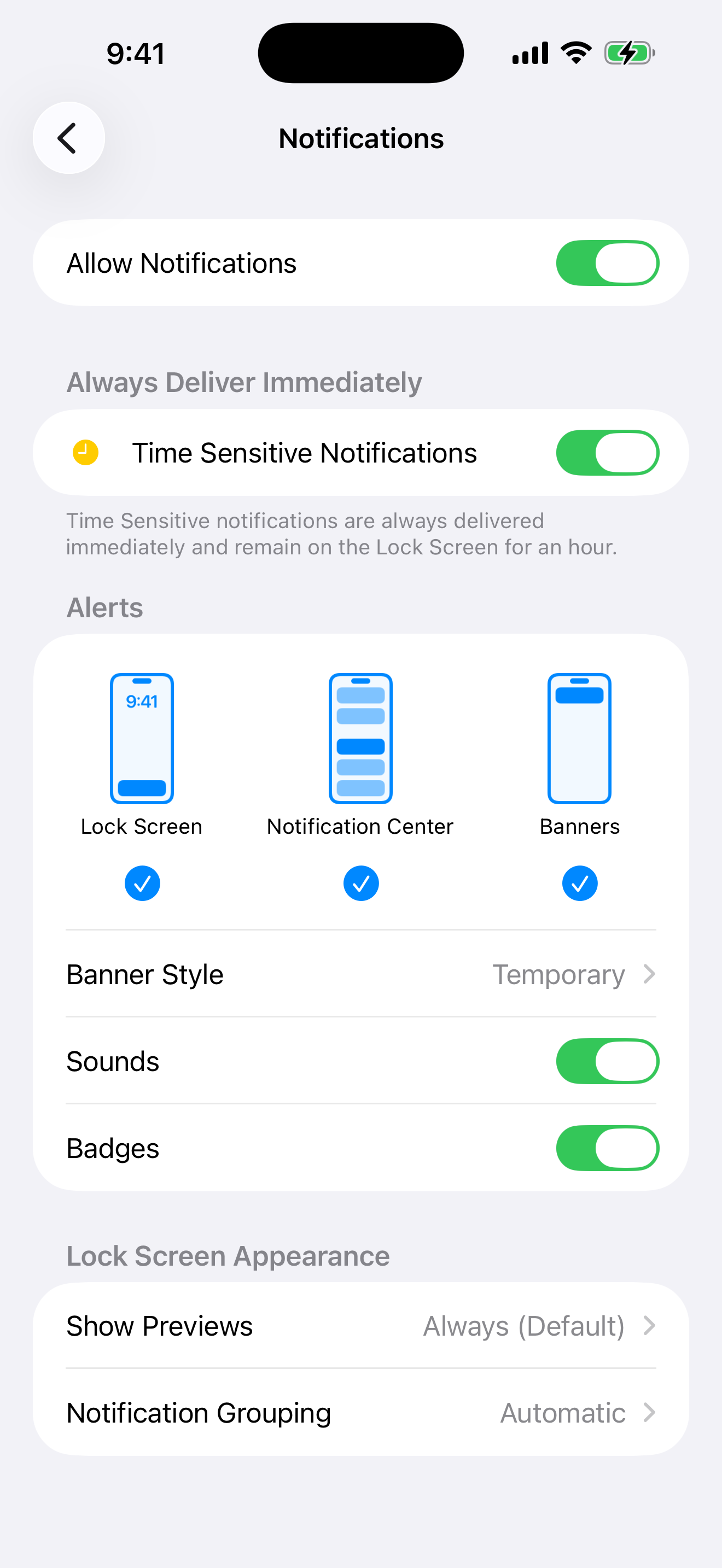
- Alerts are visible on the phone. iOS Settings → Notifications → Snack App: turn on Allow Notifications, Lock Screen, and Banners - and leave Time Sensitive Notifications on. Snack App marks reminders time-sensitive so they can break through Focus and quiet-delivery features; switching that off lets iOS delay them.
- Not in the Scheduled Summary. iOS Settings → Notifications → Scheduled Summary - make sure Snack App isn't in the summary list, or its reminders get batched for later instead of alerting your wrist.
- Focus allows Snack App. A Focus (Work, Personal, Sleep…) mirrors to the watch. If your Focus allows some apps but not Snack App, you'll see exactly this asymmetry - other apps' alerts arrive while Snack App's wait. Allow the app in the Focus, or allow time-sensitive notifications through.
- Wrist detection is on. Watch app → Passcode → Wrist Detection. With it off, iOS can't tell the watch is being worn and keeps alerts on the phone.
Still flaky?
- Restart the watch (hold the side button → Power Off, then back on). Mirroring has a long-standing reputation for wedging until a restart - across many apps, not just Snack App - and this clears it up most often. Restarting both devices is the stronger version.
- Confirm they're connected - swipe up on the watch face and look for the green phone icon, or ping your phone from Control Center.
- Open Snack App every few days. Reminders are scheduled ahead of time on both your iPhone and your watch - there's no server nudging you - and opening the app tops up that schedule. If reminders have gone quiet on both phone and watch, open the app once and they'll pick back up.
A quick way to test
Wait until a few minutes before your next reminder (your schedule is in Settings → Reminders), then lock your iPhone and keep the watch on your wrist. The reminder should tap your wrist. Then try the opposite - phone unlocked and in hand - and it will show on the phone instead. Both are iOS working as designed.
Handy on the wrist: tap the reminder and scroll down to reveal its actions - Repeat last logs your previous snack again without touching your phone.