
Notifications & reminders
Snack App nudges you with local reminders - scheduled right on your phone, with no server involved. There are two kinds: snack reminders through the day, and a once-a-day streak reminder.
Using an Apple Watch? There's a dedicated guide: Notifications on Apple Watch.
Turn notifications on
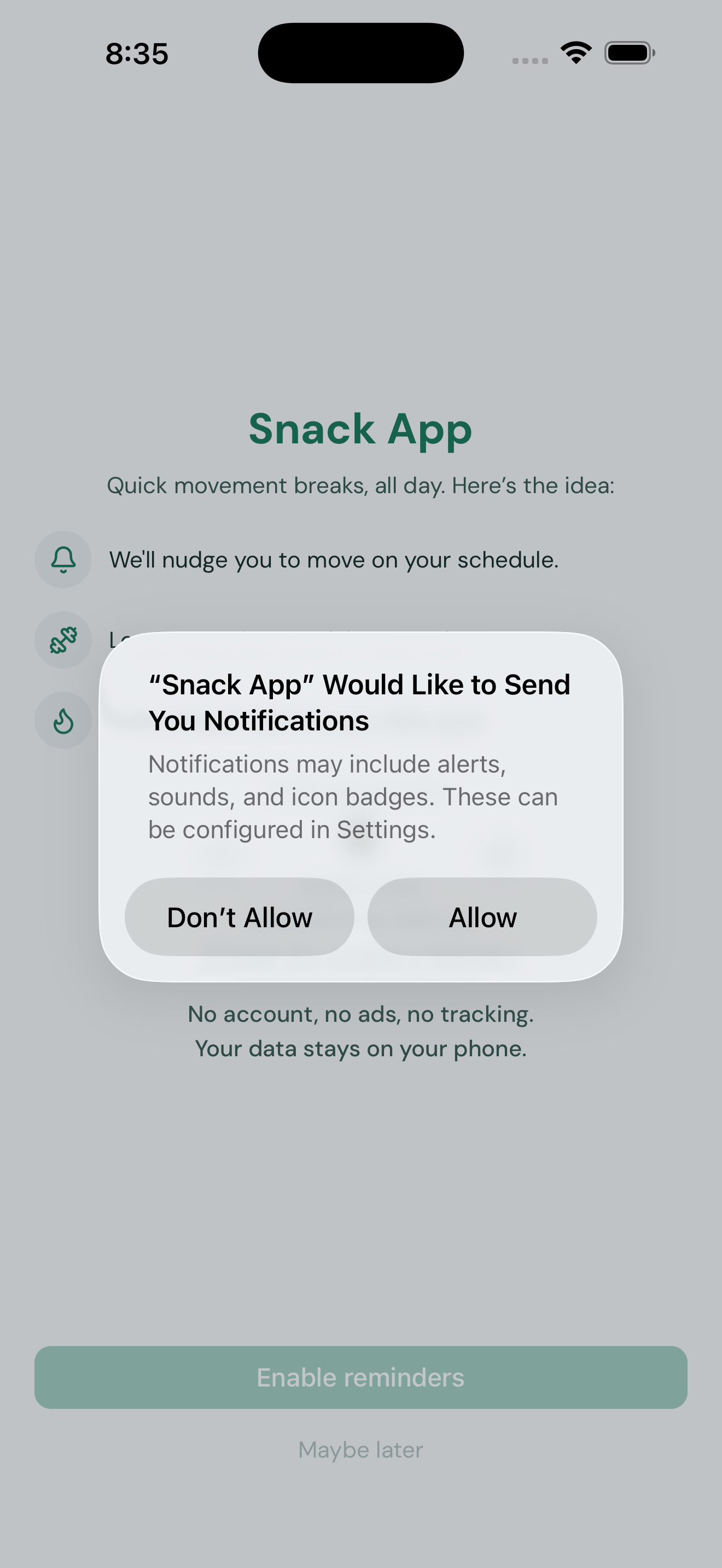
- The first time you open Snack App, it asks permission - tap Allow.
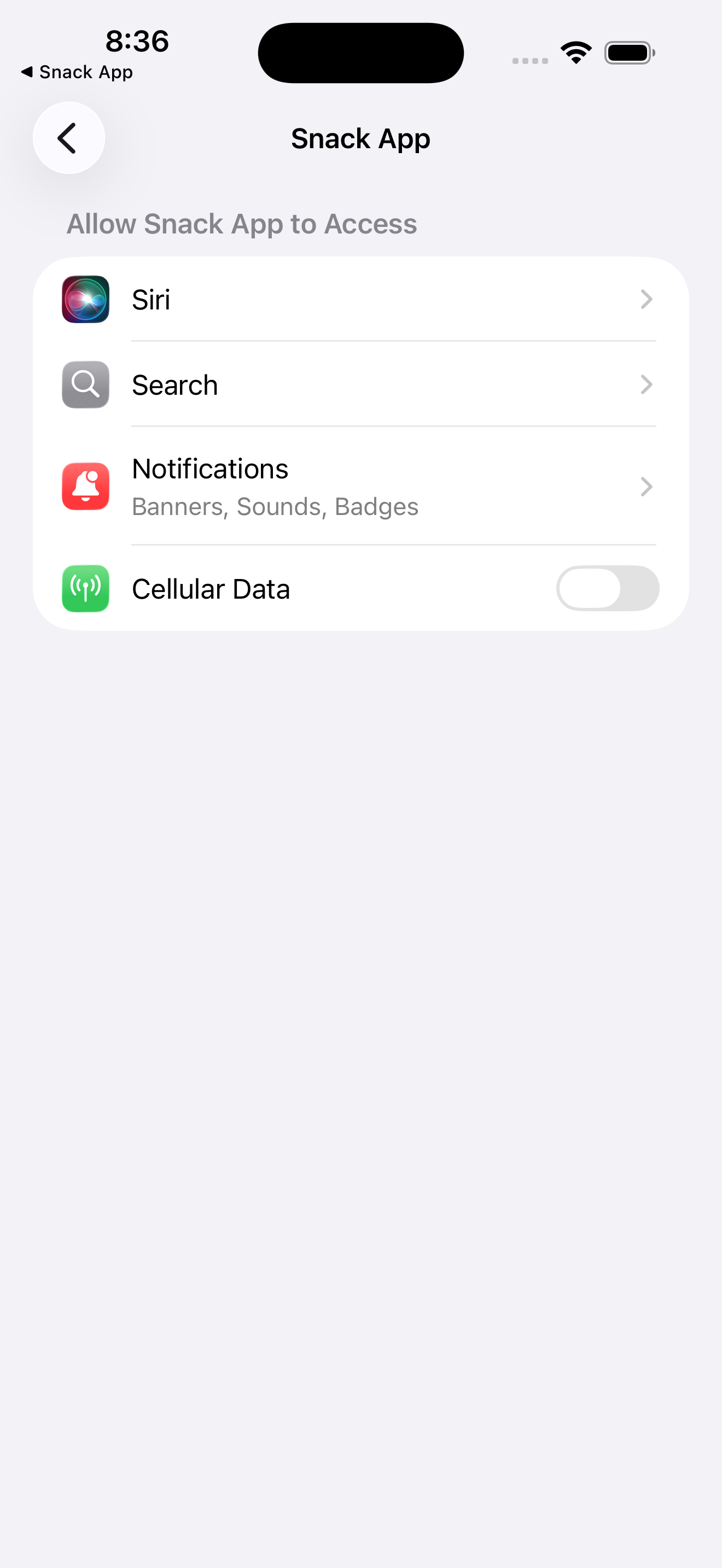
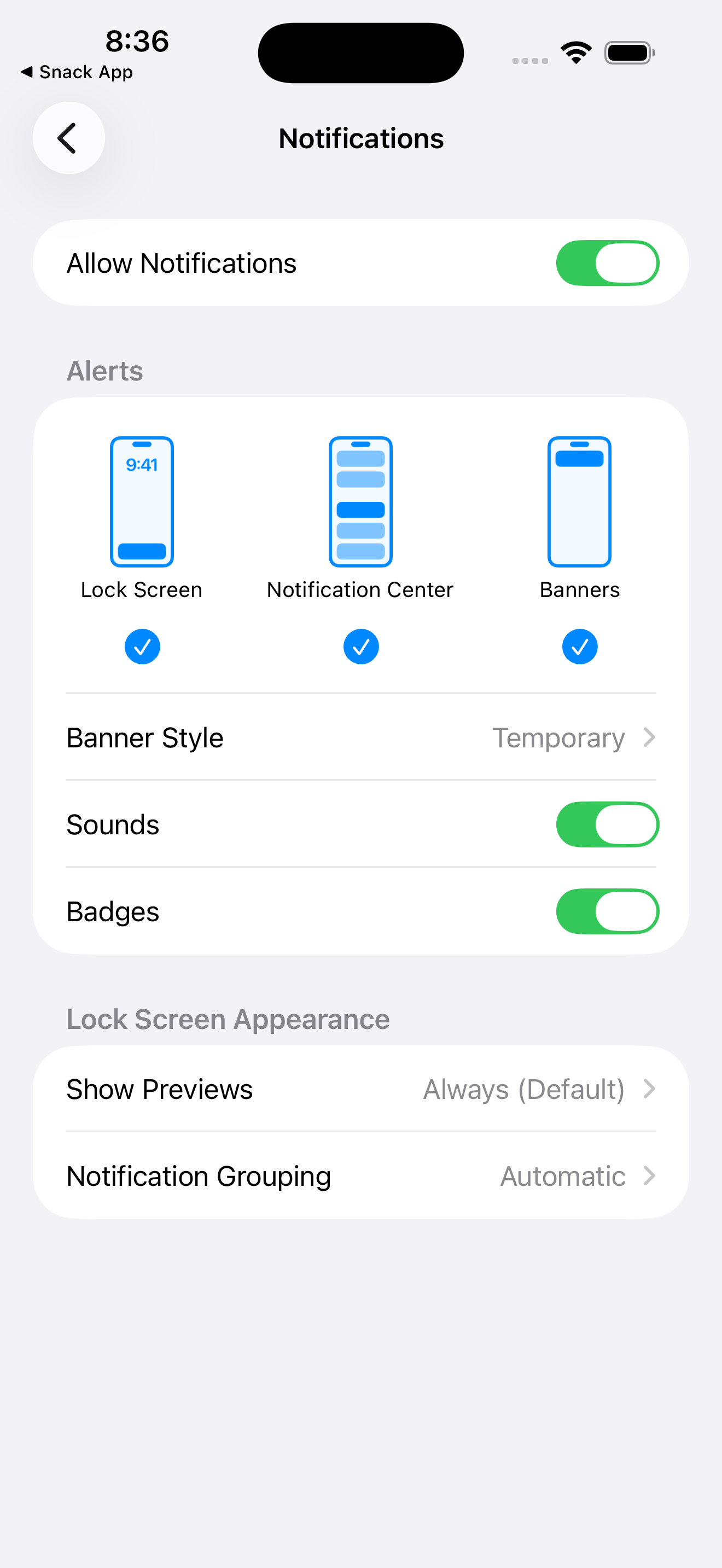
- Tapped “Don't Allow,” or changed your mind later? iOS only asks once, so you switch them back on in iOS Settings. Snack App shows a Notifications are off banner with an Open iOS Settings button - tap it, then turn on Allow Notifications.
Choose your reminders
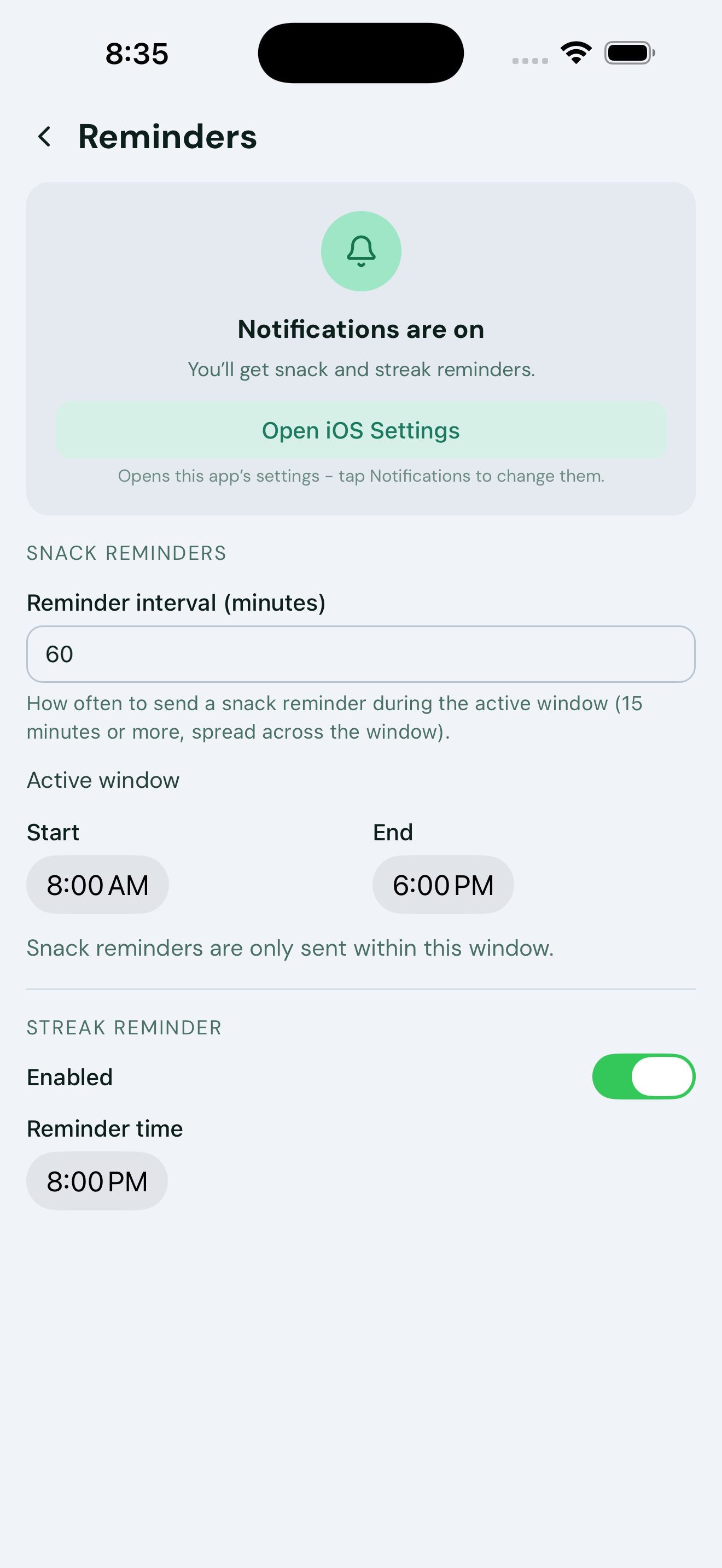
In the app, open Settings → Reminders to set:
- How often snack reminders fire (the interval).
- An active window - say 8am to 6pm. Nothing fires outside it.
- The daily streak reminder time (or switch it off).
If the window's end is before its start, no reminders can fire - the app warns you so they don't silently stop.
Snooze one
Reminder land at a bad moment? Long-press it for a quick 10- or 20-minute snooze, so a busy stretch doesn't cost you the streak.
Want only Snack App to make a sound?
A common setup: you keep your phone on silent so other apps (messages, email, chat) don't constantly buzz - but you'd still like Snack App's nudge to come through with a sound. iOS only lets a notification override silent mode for special critical alerts (reserved for things like medical and safety apps), so a movement reminder can't pierce the silent switch on its own.
What works instead - keep the ringer on, and quiet the other apps one by one:
- Turn the ringer on (the side switch, or Control Center).
- Open iOS Settings → Notifications.
- For each app you'd rather not hear, tap it and turn off Sounds (or set it to Deliver Quietly).
- Leave Snack App → Sounds on.
Now Snack App dings while the rest stay quiet.
Side effect: with the ringer on, the keyboard may start clicking as you type. To silence just the keyboard (and nothing else), go to Settings → Sounds & Haptics → Keyboard Feedback and turn Sound off.
Not getting reminders on your Apple Watch?
Snack App has no separate watch app - it relies on iOS's built-in notification mirroring, and iOS shows each alert on either the phone or the watch, never both. What looks like flaky delivery is usually those routing rules at work. See the dedicated guide: Notifications on Apple Watch.
The reminder always fires on your iPhone regardless; the watch is a convenience mirror on top.
Turn notifications off
- All of them: iOS Settings → Snack App → Notifications, then turn off Allow Notifications.
- Just some: in Settings → Reminders, switch off the streak reminder or widen the interval.
Privacy
Reminders are scheduled and delivered entirely on your device. There's no server, and we never learn whether one fired or was tapped. See our Privacy Policy.